On-device AI
Where Chrome ships its built-in language model (Gemma Nano), Tabverse uses it, entirely on this device, for:
- AI Chat - a conversation in a tool tab, which can answer about a page you attach to a question.
- Summarize a page into a note - a new note, or appended to the note you are editing.
- Suggest a name for the current tab collection, from its tabs' titles and hosts.
One page action, View page content as Markdown, needs no model at all: it converts the page to Markdown and shows it, ready to copy.
Where to find it
Settings ▸ AI reports three things: whether this device can use the model at all, whether it is switched on (Use the on-device model), and whether the local model is installed. Chrome downloads the model once, on first use.
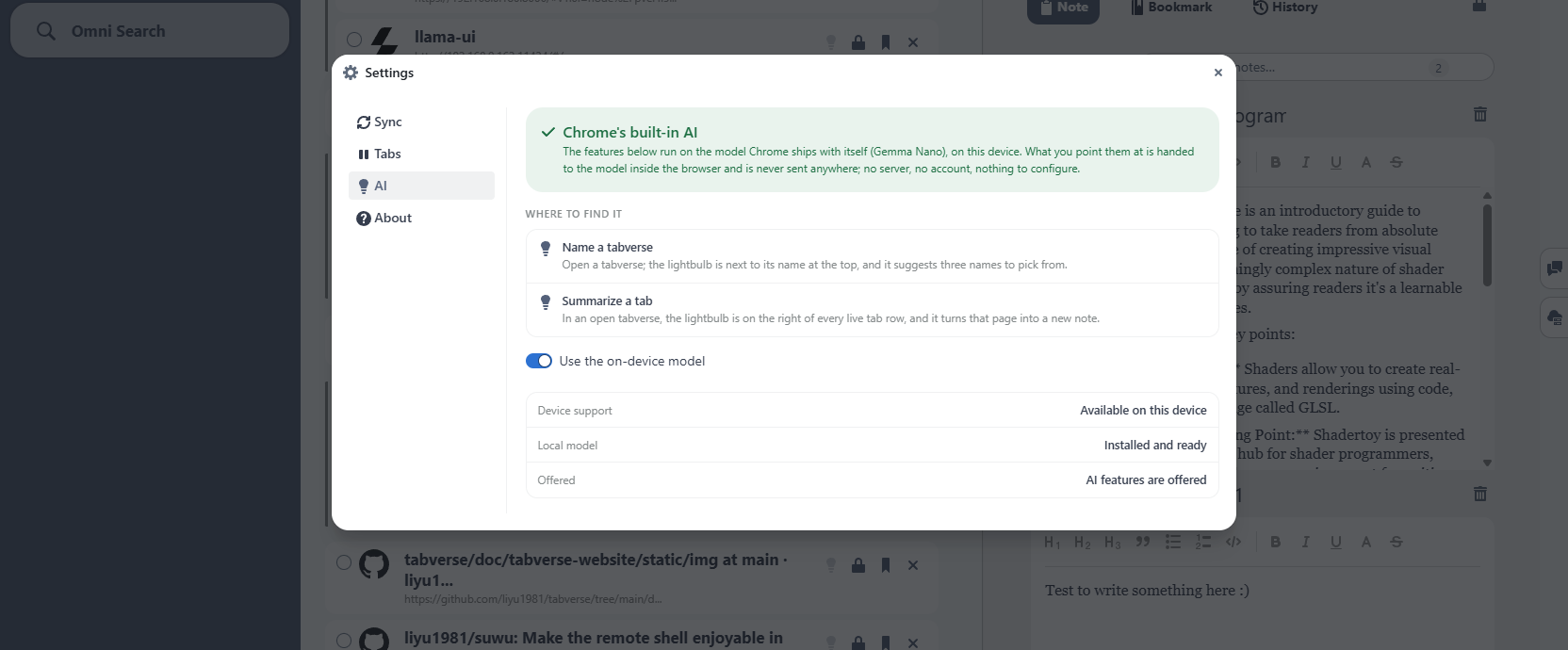
In the manager, the AI controls are the lightbulbs and the AI Chat tool tab:
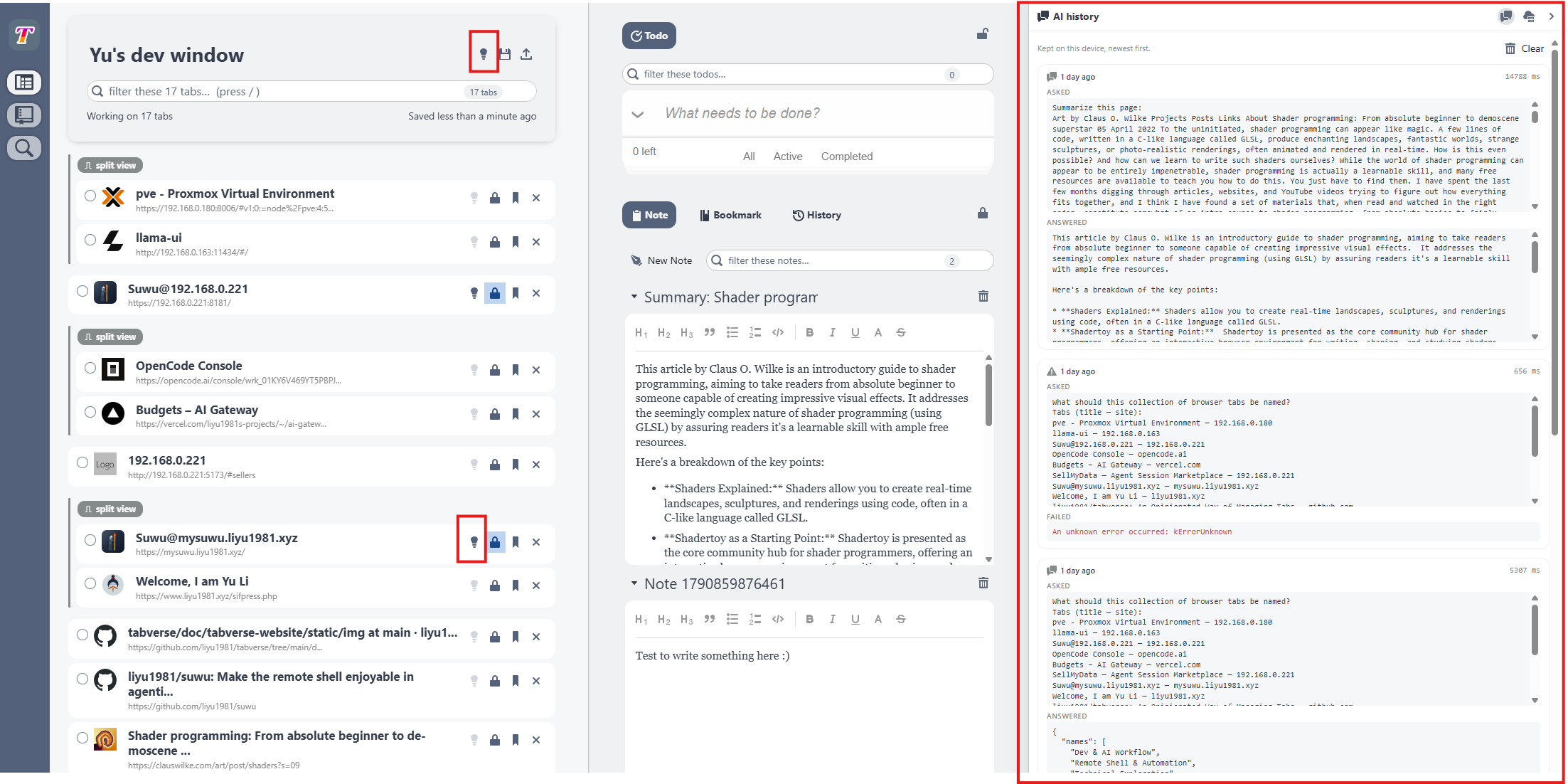
- Name a tabverse - the lightbulb next to the tabverse's name.
- Page actions - the lightbulb on a live tab row (see below).
- AI Chat - a tool tab beside Todo, Note, Bookmark and History (see below).
Without Chrome's built-in model the AI items are disabled and the chat says so; Settings ▸ AI says why. The page-actions menu still works - View page content as Markdown needs no model.
Page actions on a live tab
The lightbulb on a live tab row opens a menu. The button is disabled while the tab is suspended, because a discarded tab has no page to read.
- View page content as Markdown - reads the page, isolates its article and converts it to Markdown, then shows it in a dialog with a Copy Markdown button. No model is needed.
- Send page content to AI chat - attaches the page to the next question in the AI Chat tool and opens that tool (see below).
- New note with AI summary - summarizes the page and adds the summary as a new note in the current tabverse.
- Append to current note with AI summary - the same summary, proposed to the note you are editing; nothing is written until you review and accept it.
The summary is built from the page's Markdown, not from its raw text, so the model reads the article rather than the page furniture (navigation, footers, cookie banners).
AI Chat
AI Chat is a conversation with the same on-device model. It is a tool in the tools column, beside Todo, Note, Bookmark and History, so it can be pinned and focused like the rest. The conversation is one chat for the extension, kept on this device, and is separate from the AI history.
- Ask in the box at the bottom. Enter sends; Shift+Enter starts a new line. The answer streams in and is drawn as Markdown (headings, lists, code).
- Copy an answer, or Regenerate the newest one.
- The Context bar at the top of the chat shows how much of the model's context window the conversation is using.
- Clear conversation (in that top bar) throws the whole conversation away. Clear input (in the composer) clears only the draft and any attached page.
- When the conversation is long enough to fill the context window, the older turns are folded into one summary, shown in the transcript as Earlier conversation summarized to fit the context.
Attach a page to a question
Send page content to AI chat on a live tab attaches that page to the next question:
- the page appears as a chip above the composer; remove it with its × or clear it with Clear input;
- type your question and send. The chat shows the question; the page becomes a collapsed block above it, which you can open to see what was attached;
- the model is handed the page and the question together, and is told the page is data, not instructions.
Name a tabverse
The lightbulb next to the tabverse's name (top of the tab list) suggests three names from the tabs' titles and hosts; click one to use it. Nothing is named automatically.
AI history
The AI history panel (the chat-bubble icon on the right rail) is a local log of the one-shot AI jobs - each entry shows the prompt and the answer, newest first, with a Clear button. It is kept on this device and is never synced. The AI Chat keeps its own conversation separately and does not appear here.
Privacy
Nothing leaves the browser: the text is handed to the model inside the page, and no request is made to us or to anyone else. The model itself is Chrome's own and is downloaded once by Chrome; it is not part of the extension.