Tabverses
A tabverse is one Chrome window and its tabs, with a name and a memory. This page covers creating one, the manager interface, saving and restoring, searching your saved tabverses, and exporting and importing them as files.
Create a new tabverse
Click the Tabverse T icon in Chrome's toolbar to open the popup, then
New tabverse:
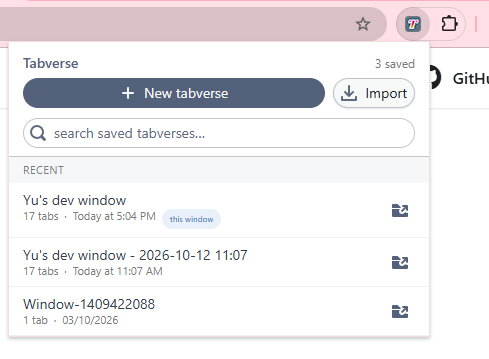
- If the current window is not a tabverse yet, it becomes one, in a new tab.
- If it already has one, Tabverse asks first: the current tabverse is already saved, and continuing replaces it here - the tabs the window has open become part of the new one.
A window holds at most one tabverse at a time.
The manager interface
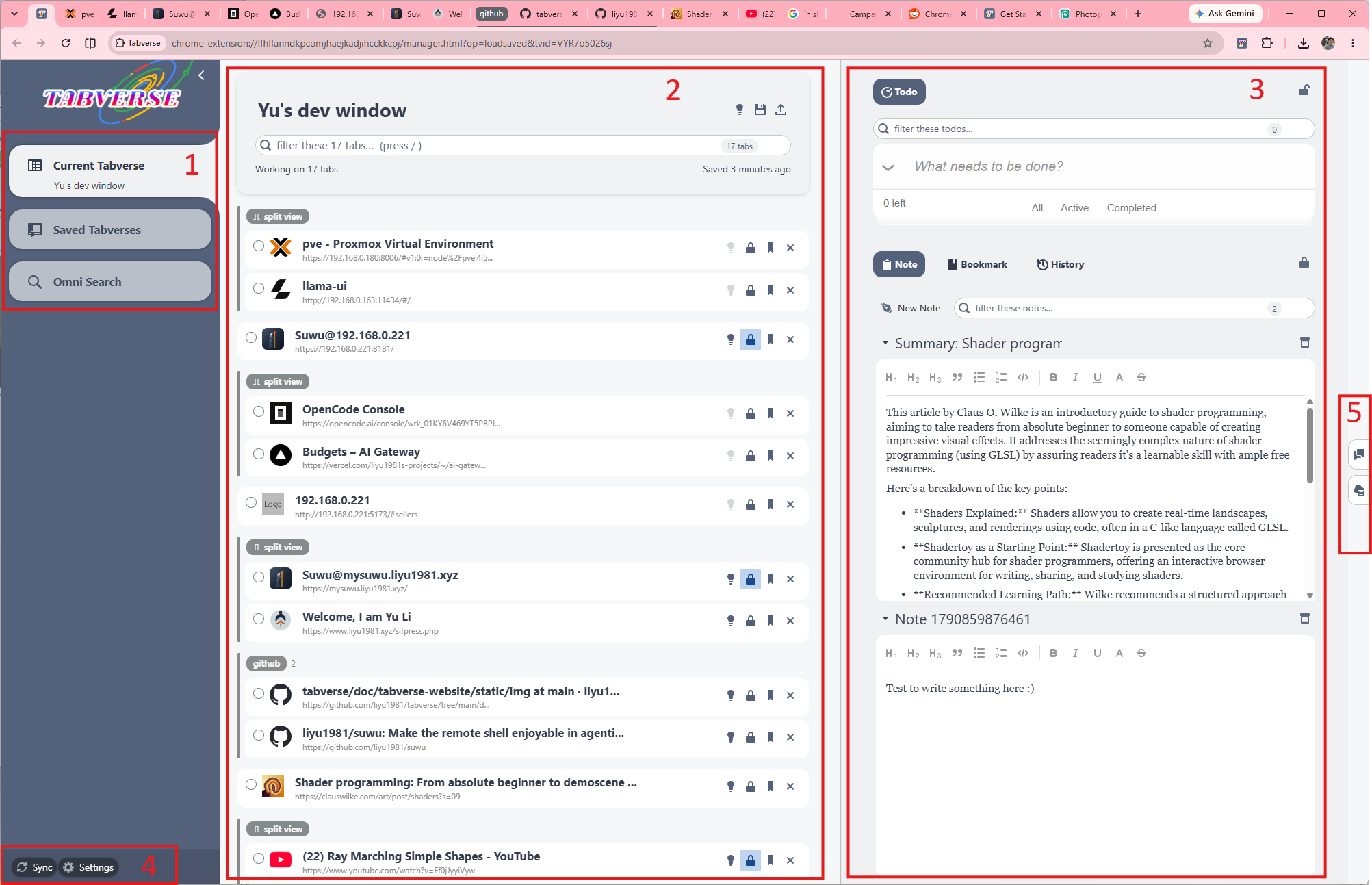
- 1 - Current Tabverse: the sidebar entry for the tabverse of this window (its name is below it). The other entries are Saved Tabverses and Omni Search.
- 2 - This window's tabs: the live tabs the tabverse manages. The name at
the top is editable; the box filters the list (
/focuses it); the header says how many tabs there are and when the tabverse was last saved. Split views are drawn as one block, and each row has its own buttons (pin, suspend, bookmark, close). The icons at the top right are the AI name suggestion, Save & close and Export. - 3 - Tools: Todo, Note, Bookmark, History and - where Chrome ships its built-in model - AI Chat, for this tabverse. One tool can be pinned to the top; the rest move into the strip below it. See Tools.
- 4 - Sync / Settings: the bottom-left buttons. Sync opens the sync settings; Settings opens the dialog with Sync, Tabs (tab suspension), AI and About.
- 5 - The right rail: two panels that are about the tooling around a tabverse, not about the tabverse itself - AI history and the Server console. Click an icon to open the panel; it pushes the tabverse to the left.
Everything is saved as you work: tab events (open, close, move, pin) and tool edits are written to this browser's database immediately. There is no "save" button to remember.
Tools
The tools column holds the tabverse's own tools: Todo, Note, Bookmark, History, and - where Chrome's built-in model is available - AI Chat.
- Pin a tool to keep it at the top of the column while the others sit in the strip below; unpin returns it to the strip.
- Focus a pinned tool (the button to the left of unpin) to hide the strip and give the tool the column; press it again to bring the strip back.
- The pinned tool and the tool selected in the strip are remembered, so a reload puts you back where you were.
- A tool's own header stays put while its rows scroll - the filter in Todo and Note and Bookmark, the count and search in History, the context bar in the chat - and Todo's footer stays put too.
Save & close
Save & close (above the tab list) flushes any pending change and closes the tabverse's manager tab. The window and its tabs stay open - the tabverse is simply put down and stays in the saved list, ready to restore.
Search saved tabverses
Open Saved Tabverses in the sidebar. Its search box is a scoped query builder: pick a scope (anywhere, title, url, …), type your terms, and press Enter. It searches this browser's tabverses - names and contents (tab titles and urls, notes, todos, bookmarks, history) - and lists matching tabverses, not loose rows.
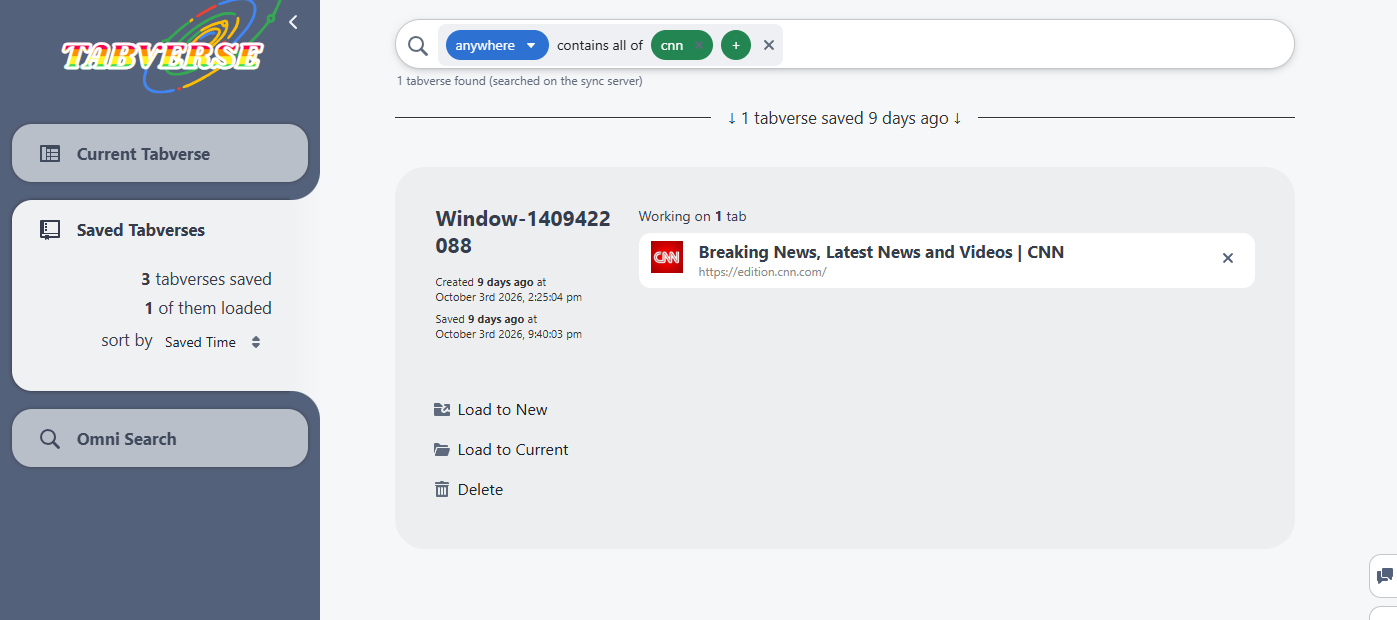
This search is local: it scans what this browser holds. When a server is paired, a second, server-backed search appears in the sidebar and knows every tabverse on the account - see Omni search.
Restore a saved tabverse
A matched tabverse's card (the view above) offers:
- Load to New - opens the tabverse in a new Chrome window, with all its saved tabs.
- Load to Current - loads it into the current window. This is a merge: the tabs already open in the window are kept, a saved tab whose url is already open is reused rather than reopened, and only the missing tabs are opened. Nothing is closed.
- Switch to Tabverse - if this tabverse is already open in another window, brings that window to the front instead of opening a second copy.
- Delete - deletes the saved tabverse and everything attached to it. There is no confirmation and no undo.
Export and import
Export (the download button next to Save & close) writes the current
tabverse to a .tabverse file: the tabverse itself, its tabs and tab groups,
notes, todos, bookmarks and history, as one JSON document. It does not change
the tabverse or close anything.
Import (in the toolbar popup) reads a .tabverse file back as a new,
independent tabverse:
- every id is reminted, so importing the same file twice - or into a browser that already holds the original - never collides;
- the new tabverse is named
Imported: <original name> - <time>; - it lands in the saved list; it is not opened.
A .tabverse file is portable, so a tabverse can move between browsers,
machines or people by file.